Windows Subsystem for Linux でダブルクリックで sh ファイルを実行する
カテゴリ:PC
bat ファイルを使う
スクリプトひとつごとに起動用 bat ファイルを書く。test.sh というスクリプトがあるとき、適当な名前で以下のような bat ファイルを作る。
wsl ./test.sh
あとはこの bat ファイルをダブルクリックすれば test.sh を実行できる。
この方法はスクリプトごとに bat ファイルが必要になるのでフォルダ内が散らかる欠点がある。その場合 .sh ファイルを隠しファイルにする方法もある。
レジストリを編集する
powershell で引数を加工して wsl を起動する。
HKEY_LOCAL_MACHINE\SOFTWARE\Classes\.sh\shell\open\command に以下のキーを追加する。
"C:\Windows\System32\WindowsPowerShell\v1.0\powershell.exe" "$arg=\"%1\";wsl (\"/mnt/\"+[System.Char]::ToLower($arg[0])+$arg.Substring(2,$arg.Length-2) -replace '\\', '/')"
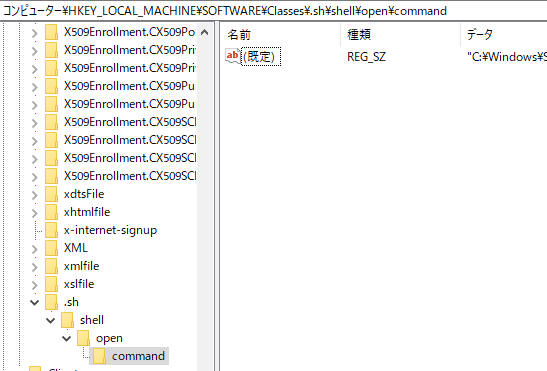
レジストリの場所
上記の方法で動かない場合は HKEY_CLASSES_ROOT\sh_auto_file\shell\open\command も試してみる。
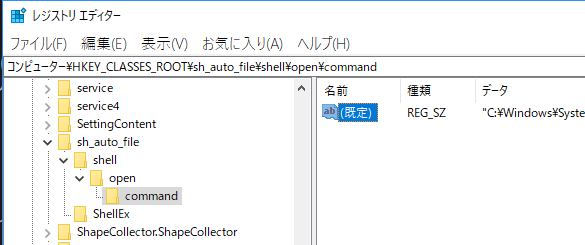
レジストリの場所
外部リンク
プログラムを書く
パスを修正するプログラムを書き .sh ファイルに関連付けする。以下のコードは C# の例だ。
  // BEGIN MIT LICENSE BLOCK //
  //
  // Copyright (c) 2016 dskjal
  // This software is released under the MIT License.
  // http://opensource.org/licenses/mit-license.php
  //
  // END MIT LICENSE BLOCK   //
  using System;
  using System.Collections.Generic;
  using System.Text;
  using System.Diagnostics;

  namespace buw_stab_cs
  {
      class Program
      {
          static void Main(string[] args)
          {
              if(args.Length != 1)
              {
                  Console.WriteLine("引数にパスを指定してください。");
                  Environment.Exit(1);
              }

              var lPath = args[0].Replace('\\', '/');
              lPath = "/mnt/" + lPath[0].ToString().ToLower() + lPath.Substring(2, lPath.Length - 2);
              Process.Start(@"C:\Windows\System32\bash.exe", lPath);
          }
      }
  }
このプログラムはここからダウンロードできる。実行は自己責任で。